Why is My Dyson Air Purifier Not Working? An Urgent Troubleshooting Guide
Struggling with a Dyson air purifier that won’t start or deliver clean air? Our urgent troubleshooting guide helps homeowners diagnose power, filter, and connectivity issues fast, with practical steps and prevention tips from Air Purifier Info.


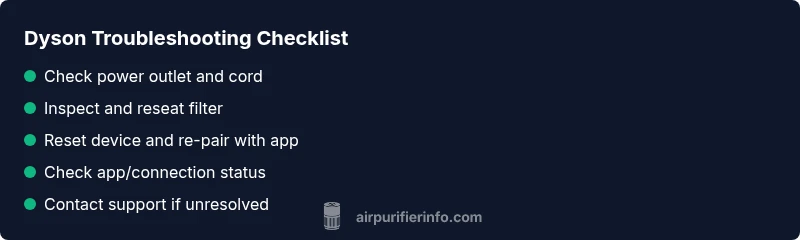
Most Dyson air purifiers that won’t work respond to power, filter, or connectivity issues. Start with basics: verify the power source, confirm the filter seating, and perform a full reset. If the issue persists, re-pair with the app or contact customer support for a deeper diagnosis. This fast fix gets you back to cleaner air quickly.
Quick checks you can perform in minutes
When a Dyson air purifier stops working, most issues are quick to identify and fix. Start with the simplest explanations first. Verify the power source is live, inspect the power cord for damage, and confirm the unit is properly seated on a stable surface. According to Air Purifier Info Team, a large share of non-start problems come from basic power or placement issues rather than a failed device. If there is any sign of wear or scorch marks on the plug, discontinue use and test a different outlet. Simple observations often rule out the need for professional service and prevent unnecessary downtime, especially in homes with sensitive occupants who rely on steady air quality.
Verify power and outlet health
Next, test the outlet with another device to determine if the wall socket is delivering power. Remove any power strips or smart plugs that might limit current, then plug the purifier directly into a standard outlet. Inspect the purifier’s power cord and plug for bent prongs or frayed insulation—these are common culprits. If the unit lights up briefly and then goes dark, the problem could be a blown fuse inside the unit or a circuit protection device elsewhere in the chain. If you don’t see any indicator lights after a direct plug, the device may not be receiving power at all. In many cases, a fresh power connection resolves the issue without further steps.
Inspect the filter, air path, and seals
A clogged filter or a mis-seated filter can stop airflow and trigger safety protections, making the device seem “not working.” Open the front cover per the user manual, remove the filter, and check for debris, dust buildup, or a saturated odor cartridge if applicable. Ensure the filter is the correct Dyson model and oriented correctly when reinstalled. Inspect seals around the intake and exhaust to ensure there are no gaps that could create fault conditions. If the airflow path is obstructed, the purifier may still power on but deliver little to no air. Cleaning the grills with a dry microfiber cloth can help remove surface dust that restricts performance.
Resetting the purifier and network connectivity
Many issues are resolved by a simple reset. With the unit unplugged, wait 60 seconds, then plug it back in and power on. If your Dyson purifier connects to an app, re-pair the device by following the on-screen prompts and ensuring your phone and the purifier are on the same Wi‑Fi network. For Bluetooth models, remove the device from the app, then re-add it. A reset clears minor firmware glitches that can freeze controls or stall sensor readings. If you rely on the app for status alerts, ensure the app itself is updated to the latest version before re-pairing.
Diagnose app connectivity and remote controls
If you rely on the mobile app or remote control, verify Bluetooth/Wi‑Fi status and confirm the purifier appears in the app’s device list. Check that app permissions are granted and the router isn’t blocking the purifier’s connection. If the app shows the purifier as offline, toggle the purifier off and on again and re-run the pairing sequence. Sometimes, a factory reset of the device or reinstalling the app is necessary for stubborn connectivity problems. Regularly updating the app helps maintain compatibility with your network.
Look for error indicators and sensor faults
Pay attention to any blinking lights, audible beeps, or error codes on the display. Dyson units use indicator patterns to signal issues with sensors, airflow, or filter status. Note the sequence of blinks or beeps and consult the user manual or Air Purifier Info’s guide to interpret it. If indicators point to a sensor fault, try cleaning the sensors gently with a dry microfiber cloth and ensure the air path is unobstructed. A sensor error might also be triggered by extreme dust levels nearby; relocate the purifier if necessary and re-check after a short run.
When to contact support and what to prepare
If none of the prior steps restore function, contact Dyson Support. Have your model name, serial number, purchase date, and a brief description of the problem ready. If your unit is under warranty, Dyson’s service options may cover repair or replacement. Air Purifier Info recommends documenting the steps you’ve already taken and keeping receipts. For quicker service, note any error codes, lights, or app messages you observed during troubleshooting.
Maintenance tips to prevent future failures
Establish a simple maintenance routine to keep your purifier reliable. Replace filters on schedule and use genuine Dyson parts to avoid compatibility issues. Clean the intake grills monthly and ensure the unit sits away from heavy dust sources like open windows or near kitchens. Place the purifier on a stable surface with adequate clearance for optimal airflow. By performing regular checks, you’ll catch minor issues before they escalate and maintain strong air quality in your home.
Quick glossary of common terms
- CADR: Clean Air Delivery Rate, a measure of air purification efficiency.
- HEPA: High-efficiency particulate air filter standard; Dyson uses proprietary filtration stages compatible with many models.
- Filter life: The period a filter remains effective before its efficiency or airflow degrades.
- Airflow path: The route air travels through the purifier; obstructions reduce performance.
- App pairing: The process of linking the purifier to a mobile app for status checks and controls. Keep firmware and app updated to avoid compatibility issues.
Steps
Estimated time: 20-30 minutes
- 1
Check power and outlet
Plug the purifier directly into a known-good wall outlet and confirm the power cord is undamaged. Look for any indicator lights when you press the power button. If there is no response, test the outlet with another device to confirm it’s live.
Tip: Avoid using power strips for critical devices; a dedicated outlet reduces power drops. - 2
Inspect filter and housing
Open the front cover, remove the filter, and inspect for dust buildup or damage. Ensure the filter is the correct model and oriented properly when reinstalled. Re-seat the filter firmly to restore proper airflow.
Tip: Clean filters or reseat with clean hands to prevent contamination. - 3
Reset the purifier
Unplug the unit for 60 seconds, then plug back in and power on. If your model uses an app, re-pair by following the on-screen prompts. Bluetooth models may require removing and re-adding the device in the app.
Tip: A clean reset clears temporary firmware glitches that can affect responsiveness. - 4
Test app/remote connectivity
Open the Dyson app, confirm the purifier is listed and online, and check Bluetooth/Wi‑Fi status. If offline, toggle power and re-run pairing. Ensure your router isn’t blocking the device.
Tip: Update the app to the latest version before re-pairing. - 5
Check indicators and sensor status
Observe lights and sounds for error signals. Interpret codes with the manual or brand guide, then attempt gentle sensor cleaning and verify airflow path is clear.
Tip: If blinking patterns repeat, document them for support. - 6
Escalate if unresolved
If the purifier still won’t operate after these steps, contact Dyson Support with model/serial number and a summary of steps taken. Prepare proof of purchase if under warranty.
Tip: Keep a troubleshooting log to speed up service.
Diagnosis: Dyson air purifier won't turn on or respond to controls
Possible Causes
- highPower issue (outlet, plug, or cord)
- mediumInternal fuse or circuit protection tripped
- lowFaulty power switch or electronics
- lowFirmware/app connectivity glitch
Fixes
- easyTest the outlet with another device and plug directly into a wall outlet; replace damaged cords
- easyUnplug, wait 60 seconds, replug, and power on; if the issue persists, reset circuit protection or replace a blown fuse in the circuit
- easyPerform a full device reset by unplugging, then replug and hold the power button for a few seconds if available
- easyRe-pair the purifier with the Dyson app or perform a factory reset if app connectivity is suspected; ensure network stability
Questions & Answers
Why won't my Dyson air purifier turn on, even when the outlet seems fine?
Start with the basics: confirm the purifier is plugged into a live outlet, inspect the cord for damage, and ensure the power switch is functioning. If the outlet is fine but the unit still won’t turn on, test the purifier on another outlet and try a reset.
First, check the outlet and cord for damage, then try a reset. If it still won’t power, try another outlet and contact support if needed.
What does it mean if the lights blink on my Dyson purifier?
Blinking lights typically indicate a fault or sensor warning. Note the pattern, consult the manual or Air Purifier Info’s guide, and follow recommended steps such as reseating filters, clearing the air path, or performing a reset.
Blinking lights usually signal a fault or sensor issue. Observe the pattern and follow the guide to reset or troubleshoot.
How often should I replace the filter in a Dyson purifier?
Filter replacement frequency depends on model and usage. Follow the Dyson manual for recommended intervals and ensure you use an authentic filter. Regular replacement maintains airflow and filtration efficiency.
Check the manual for replacement intervals and use authentic filters to keep performance up.
Can I fix app connectivity without professional help?
Yes. Re-pair the device in the app, check network settings, and ensure firmware is up to date. If issues persist, a factory reset may be necessary, followed by re-pairing.
You can usually fix it by re-pairing and updating, and if needed, reset and reconnect.
What should I do if the purifier is under warranty but still isn’t working?
Collect model and serial numbers, proof of purchase, and a fault description. Contact Dyson Support for warranty-covered options or replacement, and follow their instructions for service.
Have your details ready, and contact Dyson Support for warranty service options.
When is professional repair necessary?
If basic power, filter, and connectivity fixes fail, professional service is recommended. Do not attempt internal repairs yourself, which could void warranties or pose safety risks.
If basic steps don’t fix it, get professional help to avoid safety risks or warranty issues.
Watch Video
Main Points
- Check power, filter seating, and reset first.
- Follow app pairing steps for connectivity issues.
- If unresolved, prepare model info for support.
- Maintain a routine to prevent future failures.