How to Use Dyson Air Purifier Without Remote
Discover how to operate a Dyson air purifier without the remote using on-device controls and the Dyson Link app. This educational guide covers setup, troubleshooting, and best practices for homeowners.


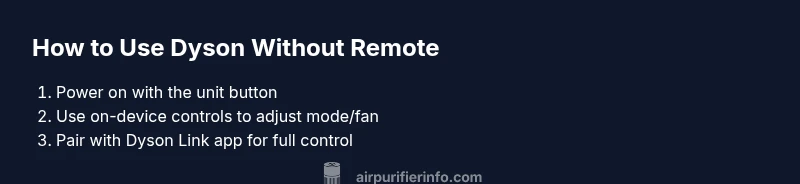
You can operate a Dyson air purifier without the remote by using the unit’s physical power button, on-device controls, and the Dyson Link app if you’ve linked the device. If the app isn’t available, rely on Auto and manual fan settings accessible from the body. This quick guide outlines practical, model-agnostic steps for most Dyson purifiers.
Understanding remote-less operation on Dyson purifiers
If you’re searching for how to use dyson air purifier without remote, you’re not out of luck. Dyson purifiers are designed to be controllable even when the remote is missing, through a combination of on-device controls and the Dyson Link app. According to Air Purifier Info, this flexibility is common across most Dyson models and helps maintain air quality without depending on a single accessory. The Air Purifier Info team found that many homes experience misplaced remotes, which makes knowing alternative control paths essential for uninterrupted operation. In practice, you’ll typically rely on the physical power button to turn the unit on and off, the control panel to adjust modes or fan speed, and the app as a supplementary control when it’s available. Being comfortable with these options ensures you don’t lose performance just because the remote isn’t handy.
Quick-start basics: on-device controls
On-device controls are the immediate fallback when the remote is missing. Most Dyson purifiers feature a clearly labeled power button and a touch or physical panel to switch between modes (Auto, Night, Boost) and adjust fan speed. Start by locating the control surface on the unit itself. Press the power button to turn the purifier on, then use the mode switch or touch controls to select Auto for automatic air-quality-based adjustments, or Manual to set a preferred fan speed. If your model includes a display, monitor the indicator lights to confirm current settings. Always exercise gentle presses on touch areas to avoid unintentional changes. This tactile approach keeps you in control even without the remote and minimizes the need for re-pairing hardware.
Using the Dyson Link app as a substitute when the remote is missing
Pairing your purifier with the Dyson Link app can provide full access to controls and monitoring once the device is linked to your account. Open the app, follow the prompts to add a new device, and complete the pairing process. After pairing, you can monitor air quality in real time, modify Auto/Manual modes, and adjust fan speeds from your phone. If you previously enabled notifications or schedules, those will continue to function through the app. Air Purifier Info analysis shows that homeowners frequently rely on the app when the remote is unavailable, as it offers a robust, remote-like control experience without needing the physical remote.
Model considerations: common patterns without a remote
Dyson purifiers share core control concepts across their popular lines, so the general approach works for many models. The power button, mode options, display indicators, and app connectivity usually remain consistent. Older generations may emphasize on-device controls more heavily, while newer variants emphasize app-based control and voice integration. Regardless of the model, the essential principle is to use the power button to start, the mode/fan controls to adjust performance, and the Dyson Link app for enhanced management when available. If you encounter a model-specific quirk, consult the quick start guide included with your unit for precise button presses and sequence changes. This consistency helps homeowners stay in charge even when the remote is lost.
Troubleshooting common issues when the remote is missing
If the purifier seems unresponsive, start with a basic power check: ensure the unit is plugged in and the outlet is functioning. If the on-device controls don’t respond, unplug for a moment and reconnect to reset a minor glitch. Confirm that the control panel isn’t locked; some models include a lock feature to prevent accidental changes. If you’ve set up the app, verify the device appears in the app’s device list and that your phone and purifier are on the same network. For persistent issues, disconnect and re-pair via the app, following prompts to re-link the purifier. These steps help restore full control without the remote and maintain air quality.
Maintenance and safety considerations without a remote
Regular maintenance remains essential when operating without the remote. Check the air-filter status indicator and replace filters as needed, clean the sensor areas per the manual, and ensure the purifier isn’t blocked by objects that obstruct airflow. Do not poke at the control surface with sharp objects, and avoid using the device in environments with high humidity or dust that could degrade sensors. Keeping the unit clean and well-ventilated helps preserve performance even when you rely on on-device controls and the app for daily operation.
Best practices for day-to-day use and final recommendations
For day-to-day living spaces, keep the purifier in a location with good air intake and avoid placing it behind furniture or walls that could trap air. Use Auto mode to let the purifier respond to air quality changes, and switch to Boost for brief, faster purification when you return home after cooking or cleaning. If the remote returns, you can re-link it with the app or pair a new remote if needed. The goal is consistent air quality with flexible control options, maximizing the purifier’s lifespan and efficiency.
Tools & Materials
- Dyson air purifier unit(Plug into a power outlet; ensure accessibility for manual controls.)
- Smartphone with Dyson Link app(Install latest version; connect to the same Wi-Fi as the purifier.)
- Dyson Link account(Sign in to link the purifier to the app for remote-like control.)
- Replacement remote (optional)(Useful if/when you want a physical remote in addition to the app.)
- User manual or quick-start guide(Reference model-specific button layouts and safety notes.)
Steps
Estimated time: 15-25 minutes
- 1
Power the unit on
Locate the purifier’s on/off button on the body and press to wake the unit. Confirm the indicator lights illuminate or the display lights up, signaling the device is active. This establishes a baseline before making further adjustments.
Tip: If the unit doesn’t respond, check the power outlet and verify there’s no loose connection. - 2
Access basic on-device controls
Use the control panel to toggle modes and adjust fan speed. Start with Auto to let the purifier respond to air quality, or switch to Manual to set a fixed speed. Observe any indicators to confirm your chosen settings.
Tip: Press and hold if your model uses long-press to access advanced options. - 3
Connect via Dyson Link app
Open the Dyson Link app and add the purifier, following on-screen prompts to pair it with your account. Once connected, you can monitor air quality and adjust settings from your phone.
Tip: Ensure your phone is on the same Wi-Fi network as the purifier during setup. - 4
Enable Auto mode through app or on-device
In Auto mode, the purifier automatically adjusts fan speed based on real-time air quality. This provides hands-off control when the remote is unavailable.
Tip: Use an initial baseline test by letting Auto run for 15–20 minutes to observe responsiveness. - 5
Test control paths on both interfaces
Verify that you can change modes and fan speed from the app and the on-device panel. Confirm that all primary functions respond as expected.
Tip: If one path lags, restart the app or reset the purifier’s connection from the app. - 6
Re-link or replace remote if needed
If a remote is found or procured, use the app guidance or model-specific steps to link it to the purifier so you have multiple control paths.
Tip: Keep the remote in a known, clean place to simplify future access.
Questions & Answers
Can I operate a Dyson air purifier without the remote?
Yes. Use the on-device power button and controls, or connect via the Dyson Link app to manage modes and fan speed. The app adds flexibility when the remote is missing.
Yes. Use the built-in controls or the Dyson app to manage modes and fan speed without the remote.
What should I do if the remote is lost?
Continue using on-device controls and the Dyson Link app. If you want a physical remote again, consider re-pairing or purchasing a replacement remote.
If the remote is lost, rely on the on-device controls or the app. You can re-pair or replace the remote if needed.
Is auto mode still effective without the remote?
Yes. Auto mode adjusts fan speed based on real-time air quality, and you can enable it on-device or via the app regardless of remote presence.
Auto mode works without the remote, via the unit or app.
Can I control the purifier’s fan speed without the remote?
Yes. Adjust fan speed from the on-device controls or the Dyson Link app if connected.
Fan speed can be adjusted on the unit or in the app when available.
Do I need the Dyson Link app to operate the purifier?
Not strictly required for basic operation. The app enhances control, monitoring, and scheduling, but you can purify air with the on-device controls alone.
The app isn’t required for basic use, but it adds convenience and monitoring.
Will lack of a remote affect purification performance?
No, core purification remains the same. Some advanced features may be limited without the remote, but Auto/manual control via app or on-device controls maintains performance.
Purification performance stays the same; some features may be limited without the remote.
Watch Video
Main Points
- Use the on-device power button to turn on the purifier.
- Shift between Auto and Manual modes via the body controls or app.
- Pair and use the Dyson Link app to extend control without a remote.
- Keep a spare remote handy, but rely on app/controls for day-to-day use.
- Perform regular maintenance to sustain purification efficiency.