How to Make Dyson Air Purifier Rotate
Learn safe, practical steps to enable oscillation on Dyson air purifiers for even room-wide air distribution. This guide covers model checks, placement, setup, and troubleshooting for homeowners and renters.


To make Dyson air purifier rotate, enable the built-in oscillation feature rather than attempting any hardware modification. First, confirm your model supports oscillation. Then use the control panel, remote, or Dyson Link app to turn oscillation on, and place the unit on a stable surface with clear airflow. If rotation isn’t visible, consult your model guide for specific controls.
What rotating airflow means for Dyson purifiers
Rotating airflow, often called oscillation, is how many Dyson purifiers distribute clean air across a room. It isn’t about physically spinning the unit; it refers to the fan sweeping from side to side to broaden the air plume. For homeowners and renters, this means fewer cold spots and more uniform air quality in living rooms, bedrooms, and home offices. According to Air Purifier Info Team, models with built-in oscillation offer wider coverage and more even distribution when used correctly. If you don’t see a rotation, review the control options—some models require enabling oscillation via the panel, remote, or app.
Does your model support oscillation? How to check
Not every Dyson purifier supports rotation. Start by locating the model number on the base or in the user manual. Visit Dyson’s official product pages or your manual to confirm whether oscillation is listed as a feature. Air Purifier Info analysis shows that most mid-range and newer Dyson purifiers include an oscillation option, but some compact or older models may not. If you’re unsure, consult the manufacturer’s guide or contact support. The key distinction is whether rotating airflow is a built-in capability rather than a physical rotation of the device itself.
How to enable oscillation on Dyson purifiers
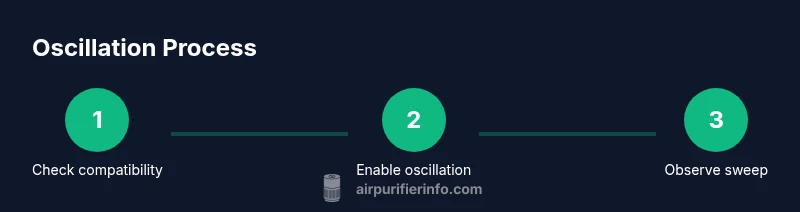
Power on the unit and access the main control panel, remote, or mobile app. Look for a button labeled Oscillation, Auto, or Sweep. Toggle Oscillation to On. If using the Dyson Link app, navigate to the purifier’s controls and enable Oscillation, then adjust the sweep angle if the model supports it. If your device uses a remote, press the Oscillation button and observe the air stream begin to sweep left and right. If oscillation isn’t immediately visible, ensure the unit isn’t blocked by furniture and has adequate clearance on all sides.
Placement and safety considerations for rotating airflow
Place the purifier on a flat, stable surface away from edges where it could be tipped. Maintain at least 12 inches of clearance from walls and large objects to allow a full sweep. Keep cords out of walkways and ensure sensors have unobstructed access to the air. Avoid placing the unit behind furniture or in enclosed shelves, which can impede rotation and airflow. Regularly check the intake and outlet to prevent dust buildup that could affect performance.
Troubleshooting common rotation issues
If oscillation stops or appears weak, start by turning Oscillation off and back on to reset the control. Check for obstructions around the intake and outlet—dust, fabric, or toys can hinder airflow. Ensure you are using a compatible model; some units require firmware updates for optimal oscillation. If you still don’t see rotation, consult the manual or Dyson support. For renters, verify that vibrating surfaces or heavy furniture aren’t dampening the unit’s movement.
Maintenance and optimization for even distribution
Regularly replace or clean filters according to the manufacturer’s schedule, as clogged filters reduce airflow and can affect oscillation efficiency. Keep the surrounding area dust-free and wipe the exterior with a dry cloth to prevent sensor interference. For best results, run the purifier in a central living area during the day and adjust oscillation to cover high-traffic zones. This practice, supported by Air Purifier Info, helps maintain balanced air quality across rooms.
Tools & Materials
- Dyson air purifier (model with oscillation)(Confirm oscillation capability in product specs or manual)
- Stable power outlet(Plug into a grounded outlet with sufficient cord length)
- Remote control or Dyson Link app(Use if your model supports remote/app-based oscillation controls)
- Owner's manual(Reference for model-specific oscillation controls and limits)
- Clean, dry surface and clear space around purifier(Ensure at least 12 inches clearance on all sides)
Steps
Estimated time: 15-25 minutes
- 1
Verify oscillation capability
Check your model’s manual or Dyson’s official product page to confirm that oscillation is a supported feature. If unsupported, you’ll need to use fixed airflow with proper placement for even distribution.
Tip: If in doubt, contact Dyson support or Air Purifier Info for model-specific guidance. - 2
Position the purifier correctly
Place the purifier on a flat surface with at least 12 inches of clearance on all sides and away from walls or large furniture that could block airflow. This ensures a full sweep during oscillation.
Tip: Avoid corners or enclosed shelves that limit rotation. - 3
Power up and access controls
Power on the unit and locate the Oscillation control on the panel, remote, or app. Ensure the unit is not in a mode that disables oscillation (e.g., sleep mode).
Tip: If using a remote, replace batteries if the signal is weak. - 4
Enable oscillation
Toggle Oscillation to On via the control panel, remote, or Dyson Link app. If the option is in Auto mode, ensure Auto is set to sweep rather than fixed direction.
Tip: In app mode, confirm the purifier is connected to Wi‑Fi and the firmware is up to date. - 5
Test the sweep
Observe the airflow as it sweeps left and right. If you don’t notice movement, recheck clearance and avoid settings that limit movement.
Tip: Run the unit for 5–10 minutes and monitor coverage in different room zones. - 6
Maintain and recheck
Inspect filters and surfaces regularly. Recheck oscillation performance after filter changes or moving the unit to a new location.
Tip: Document a routine: visual check weekly, filter replacement per schedule.
Questions & Answers
Can all Dyson air purifiers rotate or oscillate?
Not all Dyson purifiers offer oscillation. Check your model’s features in the manual or Dyson’s product page. If supported, follow the official controls to enable the sweep.
Most Dyson purifiers offer oscillation, but some compact models do not. Check your manual to confirm and enable the feature if available.
Why won’t my purifier rotate even when powered on?
Possible reasons include a model without oscillation, obstruction around the intake/outlet, or a need to reset the control. Ensure the feature is enabled and there is sufficient clearance.
If rotation isn’t visible, verify that oscillation is supported and enabled, and check for obstructions around the unit.
Is rotating Dyson purifier safe around pets?
Yes, as long as you don’t obstruct airflow and keep the unit on a stable surface. Avoid pointing a strong airflow directly at pets for comfort.
Generally safe with pets, just keep airflow balanced and avoid direct blasts at pets.
Can I control rotation with a smartphone app?
Some Dyson models support oscillation control via the Dyson Link app. If your model supports it, connect the purifier and enable Oscillation from the app.
If your purifier is app-enabled, you can turn oscillation on through the Dyson Link app.
Does rotation affect energy use?
Oscillation typically uses a modest amount of extra energy since the fan cycles through a wider path. The effect on overall energy use is usually small compared with filtration performance.
Oscillation uses a bit more energy than fixed airflow, but the difference is generally small and offset by improved air distribution.
What should I do if rotation stops after a firmware update?
Firmware updates can reset certain settings. Re-enable oscillation after update and verify the unit is on a stable surface with no obstructions.
If updates turn off oscillation, simply re-enable it from the panel, remote, or app.
How often should I replace filters when using oscillation?
Follow the manufacturer’s schedule based on usage and air quality. Oscillation itself doesn’t change replacement intervals, but good airflow helps the purifier operate efficiently.
Keep to the usual filter schedule; oscillation doesn’t drastically alter replacement timing.
Watch Video
Main Points
- Enable built-in oscillation rather than modifying hardware.
- Place purifier with ample clearance for a full sweep.
- Use panel, remote, or app controls to activate rotation.
- Regular maintenance preserves even air distribution.