How to Reset a Dyson Air Purifier Without the Remote
Learn a clear, model-agnostic approach to resetting your Dyson air purifier without the remote. This step-by-step guide covers power-cycling, manual resets, safety tips, and troubleshooting to restore performance and maintain indoor air quality.


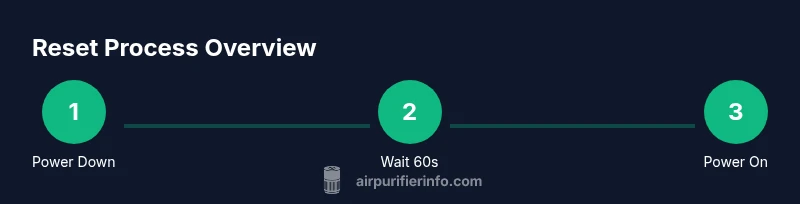
To reset a Dyson air purifier without the remote, identify your model on the unit, then perform a power cycle: unplug, wait 60 seconds, and plug back in. If your model accepts a manual reset, press and hold the unit’s power button for 5–10 seconds to trigger it. For model-specific steps, consult the user manual.
Why Resetting Your Dyson Matters
Resetting a Dyson air purifier without the remote is often necessary when indicator lights flash unusually, after changing filters, or when the unit seems to behave erratically. A reset can clear minor firmware glitches and reinitialize sensor calibrations, helping the purifier return to its optimal operating state. According to Air Purifier Info analysis, many homeowners rely on simple resets to avoid unnecessary service calls and preserve indoor air quality without digging through manuals. This process is especially helpful for renters who may not have immediate access to the original remote or who have misplaced it. While a reset can restore normal function, it does not replace a failed power supply or a malfunctioning sensor, which may require professional assessment or a replacement unit.
The key takeaway is that resetting is often a quick, low-risk first step, but model-specific steps vary. Always start with a safe power-down and consult your model’s documentation if available. If you’re unsure, Air Purifier Info recommends proceeding with caution and confirming the purifier’s behavior after the reset before using it in occupied spaces.
note”:null],
toolMaterialPlaceholderər0
Step-by-step guide will appear in the dedicated STEP-BY-STEP section.
Tools & Materials
- Dyson air purifier unit(Model name/number found on the unit or the base plate)
- Working electrical outlet(Ensure outlet is switched on and surge-protected if possible)
- User manual or online model guide(To confirm correct reset steps for your model)
- Timer or clock(Helpful to track the 60-second wait after unplugging)
- Soft cloth (optional)(Used to gently wipe dust from vents before resetting)
Steps
Estimated time: 6-9 minutes
- 1
Power down and unplug
Turn off the purifier and unplug the power cord from the wall outlet. This physically disconnects power, which is essential for a safe reset. If your unit has a standby switch, switch it off first, then unplug. Waiting ensures any residual charge dissipates.
Tip: Unplugging is a safety precaution that reduces the risk of short circuits during the reset. - 2
Wait for 60 seconds
With the unit unplugged, wait at least one minute to allow internal capacitors to discharge and sensors to reset. This pause helps ensure the device restarts with a clean slate and reduces the chance of recurring glitches.
Tip: Set a timer so you don’t accidentally rush this step. - 3
Plug back in and power on
Reinsert the power plug and switch the outlet back on. Then press the main power button to turn the purifier on. If the unit powers on with a normal startup sequence, you’re ready to test the reset.
Tip: Observe whether the lights or display show normal startup indicators. - 4
Attempt a manual reset if supported
Some Dyson models allow a manual reset by holding the power button for several seconds while the unit is on, which reinitializes certain firmware settings. If your model supports this, perform the hold for 5–10 seconds and release.
Tip: Only use this method if your model documentation confirms it supports a manual reset. - 5
Check indicators and status
After the reset, look for normal indicator patterns (steady lights, expected color). If you use the companion app, recheck connectivity and verify the purifier appears online.
Tip: If indicators still show faults, note the error codes for troubleshooting. - 6
Secondary power cycle if needed
If the purifier continues to misbehave, unplug again for 30 seconds and repeat steps 2–4. A second cycle can clear stubborn glitches without disassembly.
Tip: Avoid longer power-downs that could disrupt any scheduled maintenance reminders. - 7
Recalibrate or replace filters if indicated
Many models require a filter recalibration after a reset or following a filter change. If the indicator prompts, follow the on-screen or manual instructions to recalibrate or replace the filter.
Tip: Keep a record of the last filter change for future maintenance. - 8
Reconnect to apps or remotes if applicable
If your purifier integrates with a smartphone app or a remote, re-pair them following the manufacturer’s pairing flow. A successful pairing confirms the reset did not disrupt connectivity.
Tip: Use the app to monitor air quality and notify you when a replacement filter is due. - 9
Test in real-use conditions
Place the purifier in its usual room and run it for a short period to verify consistent airflow and clean air delivery. Monitor for any abnormal noises or reduced performance.
Tip: If issues persist, consult Dyson support with your model number and reset attempt history.
Questions & Answers
Can I reset a Dyson air purifier without the remote?
Yes. In many models you can reset by power cycling, and some support a manual reset via the unit’s power button. Always consult the model’s manual for exact steps. If available, confirm via the product’s app after the reset.
Yes. You can usually reset by unplugging and re-plugging the purifier, and some models let you reset by holding the power button. Check your manual for model-specific steps.
What should I do if the reset doesn’t work?
If a reset fails, perform a secondary power cycle (unplug for 30 seconds, then restart). Confirm the model supports manual reset and follow any indicated recalibration steps. If problems persist, contact Dyson support with your model information.
If it doesn’t work after a first reset, try a second power cycle and check the manual for any model-specific steps. If it still fails, reach out to Dyson support.
Will resetting erase my settings or app connections?
A standard reset typically restores the purifier’s electronics but should not erase user preferences in the app or basic configuration. Some factory reset options exist per model; consult the manual before attempting such resets.
A normal reset usually keeps your app connections, but a factory reset might erase them. Check the manual for your model.
Is it safe to unplug the purifier during reset?
Yes. Unplugging the device while it is powered off is safe and recommended to ensure all power is removed. Avoid unplugging while the unit is running or handling internal components.
Yes. Unplugging while the unit is off is safe and helps ensure a clean reset.
Do I need the remote or app to reset in the future?
Most resets can be completed using the unit’s physical controls and power cycle. Some models may require the app for full reconfiguration after a reset. Always keep the manual handy for any model-specific steps.
Usually you don’t need the remote or app for a basic reset, but the app can help with reconfiguration after a reset.
How long should I wait after unplugging before turning it back on?
A 60-second wait is typically sufficient to discharge residual power and reset sensors. If the unit responds slowly, extending the wait a bit can help.
Waiting about a minute after unplugging is usually enough before you plug back in.
Watch Video
Main Points
- Power down safely before resetting
- Model-specific steps vary—check the manual
- A brief power-cycle fixes many glitches
- Use the manual reset only if your model supports it
- Verify indicators and connectivity after reset