Xiaomi Air Purifier and Home Assistant: Step-by-Step Guide
Learn how to integrate a Xiaomi air purifier with Home Assistant for smarter air quality management. Step-by-step setup, sensors, automations, and best practices for homeowners and renters.


You can connect a Xiaomi air purifier to Home Assistant using the Xiaomi Miio integration in Home Assistant. Start by confirming your purifier model is compatible and enabling LAN mode if required, then add the device in Settings > Devices & Services > Integrations. Once paired, expose key sensors (pm2.5, air quality, temperature) and build automations to optimize airflow automatically.
What you’ll achieve with Xiaomi air purifier and Home Assistant
Integrating a Xiaomi air purifier with Home Assistant lets you monitor indoor air quality in real time, automate purification during high pollution moments, and control the purifier from a single dashboard. This combination reduces manual toggling and helps maintain a consistent indoor environment without constantly checking multiple apps. According to Air Purifier Info, the Xiaomi Miio-based setup offers reliable local control and responsive sensor data for most supported devices. The Air Purifier Info team found that common sensors exposed by compatible purifiers include PM2.5 levels, overall air quality index (AQI), temperature, and humidity. While model-specific differences exist, the core advantage remains: centralized management with clear visibility of air quality trends over time.
Compatibility and prerequisites
Before you start, confirm that your Xiaomi purifier model supports local API access via the Miio protocol. Ensure the purifier and your Home Assistant hub are on the same local network and that your Home Assistant installation is up to date. You should also decide whether you’ll use the UI-based setup or YAML-based configuration, and plan which sensors you want exposed for dashboards and automations. Having a static IP for the purifier simplifies reconnection if you ever reconfigure your network. Finally, allocate time for testing, since some devices require a brief pairing window to exchange credentials.
Setting up the integration
In Home Assistant, go to Settings > Devices & Services > Integrations, then click Add Integration and search for Xiaomi Miio. Enter the purifier’s IP address and (if prompted) the device token. When the device is discovered, you’ll see multiple entities such as dust level (PM2.5), AQI, temperature, and humidity. If LAN mode is required by your model, enable it as described in the purifier’s documentation and Home Assistant resources. After saving, restart Home Assistant to ensure all entities come online. Consider naming the entities clearly (e.g., living_room_purifier_pm25) to keep dashboards readable.
Exposing sensors and entities
Once integrated, confirm which entities are present in Home Assistant. Common examples include sensor.pm25, sensor.aqi, sensor.temperature, and sensor.humidity. You can customize the entity naming convention to match your room layout (e.g., kitchen_purifier_pm25). Create a simple Lovelace card that shows a real-time gauge for PM2.5, a line chart for AQI over time, and a small status indicator for device health. This visibility forms the basis for confident automation decisions.
Automations and practical examples
Automations save time by reacting to air quality changes without manual input. Example automations include:
- When AQI rises above a threshold, automatically turn on purification at a higher fan speed.
- If PM2.5 remains elevated overnight, enable a quiet mode to minimize noise while maintaining air cleaning.
- Schedule daily morning checks to ensure the purifier resets to a standard operation mode after the night.
Combining device triggers with time-based conditions yields a robust system that adapts to both daily routines and environmental fluctuations. Always test automations with a dry run to confirm actions occur as expected.
Monitoring and data visibility
Create a dedicated dashboard that aggregates purifier data with other air-quality sensors throughout the home. Use a mix of numeric gauges, trend graphs, and status chips to show real-time PM2.5, AQI, temperature, and humidity. Log data to a history graph for weekly and monthly analyses, helping you identify patterns (e.g., weekends with higher indoor activity or seasonal shifts). Regularly review dashboards to adjust thresholds as needed and keep the system aligned with your comfort goals.
Troubleshooting common issues
If the purifier is not discovered, verify the device is on the same LAN and that the IP address hasn’t changed. Double-check LAN mode settings and any required tokens. If readings are missing, ensure the purifier supports the exposed sensors for Miio integration and restart Home Assistant. For intermittent connectivity, set a static IP and confirm firewall rules don’t block the local API. If automations fire incorrectly, inspect triggers and conditions for conflicts or overlapping automations.
Maintenance, updates, and security
Regularly update both Home Assistant and the purifier’s firmware as updates become available. Clear device caches and re-run the integration setup after firmware updates if sensors stop reporting. Consider restricting remote access to your Home Assistant instance via VPN or a secure reverse proxy rather than exposing the Miio interface directly to the internet. Maintain strong network security practices to protect your automations and data.
Best practices and final notes
Document device names, sensor mappings, and automation logic to simplify future maintenance or expansion to additional purifiers. Start with a minimal, reliable setup and gradually introduce more automations as you validate performance. Remember that local control minimizes cloud dependencies, reducing latency and potential outages—an important consideration for homeowners prioritizing reliability.
Tools & Materials
- Home Assistant instance (latest stable)(Running on a supported platform (Raspberry Pi, VM, or dedicated server).)
- Xiaomi air purifier model(Ensure it supports local API access (Miio protocol).)
- Smartphone or computer with network access(For configuring the integration and dashboards.)
- Stable network with fixed IP(Assign a static IP to the purifier to avoid reconfiguration.)
- Optional: additional air-quality sensors(For richer dashboards and cross-room comparisons.)
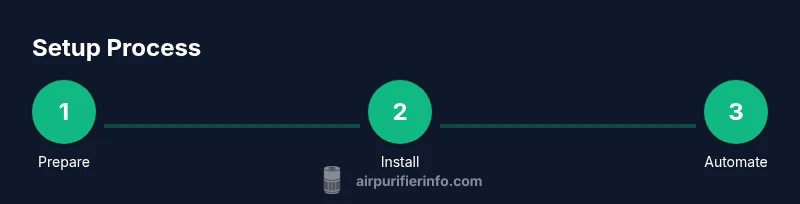
Steps
Estimated time: 45-60 minutes
- 1
Prepare your Home Assistant environment
Update Home Assistant to the latest stable version and confirm the purifier is on the same local network. Collect the purifier’s IP address and ensure you have a way to access the device on your LAN.
Tip: Document the IP address and device name for future maintenance. - 2
Install Xiaomi Miio integration
In Home Assistant, add the Xiaomi Miio integration from Settings > Devices & Services > Integrations. Follow prompts to input the purifier’s IP and token if prompted.
Tip: If you don’t see a token, use the purifier’s app to retrieve it or check community resources for token extraction methods. - 3
Enable LAN mode and pairing
If your model requires LAN mode, enable it in the purifier's settings and ensure the device is discoverable on the local network. Complete any pairing steps required by the Miio integration.
Tip: LAN mode can improve reliability and reduce cloud dependency. - 4
Verify exposed entities
Open Developer Tools > States and confirm the purifier’s entities appear (pm25, aqi, temperature, humidity, etc.). Rename them for clarity if needed.
Tip: Create a simple Lovelace card to visualize the key sensors first. - 5
Create initial automations
Set up at least two automations: (a) AQI high triggers purifier on, (b) overnight mode lowers fan speed for quiet operation.
Tip: Start with conservative thresholds and test with actual air conditions. - 6
Test and observe
Run a quick test by simulating elevated PM2.5. Confirm the purifier responds as expected and dashboards update in near real time.
Tip: If data delays occur, check network latency and device response times. - 7
Secure and maintain
Limit remote access and keep firmware and Home Assistant up to date. Regularly review automations for accuracy.
Tip: Set up alerts if the purifier becomes unresponsive.
Questions & Answers
Can I control any Xiaomi air purifier model with Home Assistant using Miio?
Most Xiaomi purifiers support local control via the Miio protocol, but compatibility varies by model. Check your device’s documentation and Home Assistant forums for model-specific notes.
Most Xiaomi purifiers work with Home Assistant using Miio, but verify your exact model first.
What sensors are typically exposed when integrating?
Common sensors include PM2.5, AQI, temperature, and humidity. Some models also expose device status and filter life where available.
Expect PM2.5, AQI, temperature, and humidity to appear as sensors.
Is cloud access required for control?
Local control via Miio is possible for many models, which minimizes cloud dependency. Some features may require cloud access depending on firmware.
Local control is usually possible, reducing cloud reliance.
What should I do if the purifier isn’t discovered?
Double-check LAN mode, IP address, and network permissions. Restart Home Assistant, and re-run the integration setup if necessary.
Verify LAN mode and IP, then restart the setup.
How can I keep this secure?
Limit remote access, use network segmentation, and keep devices updated. Avoid exposing the purifier API directly to the internet.
Limit access and keep everything updated to stay secure.
Watch Video
Main Points
- Integrate Xiaomi purifiers with Home Assistant for centralized control.
- Expose essential sensors to inform automations and dashboards.
- Test automations thoroughly before relying on them daily.
- Securely manage access and keep firmware up to date.