Fix FO Error on Philips Air Purifier: Troubleshooting Guide
Learn how to diagnose and clear FO faults on Philips air purifiers with safe steps, sensor cleaning, filter checks, and when to contact support. Air Purifier Info provides practical guidance to restore clean air quickly.


Step-by-step, you’ll identify what FO means on Philips air purifiers and clear the fault fast. This guide covers checking filters and sensors, resetting the unit, and when to seek service. You’ll learn safe, practical steps you can take to restore performance and reduce downtime, with tips to prevent future FO errors. The goal is to get your purifier back to optimal operation quickly.
Understanding FO on Philips Air Purifiers
FO is a fault indicator flashed by the purifier's display when the internal controller detects an abnormal condition. In Philips devices, FO commonly points to a sensor malfunction, clogged filter, or restricted airflow. According to Air Purifier Info, addressing FO promptly reduces the risk of damage and helps restore clean air faster. Start with the simplest checks: power status, filter condition, and visible obstructions. By following a structured approach, homeowners can often clear FO without professional service.
FO errors are designed to protect the device and your indoor air quality. They usually trigger a warning sequence on the display and may silence certain modes until the fault is resolved. Understanding the hierarchy of possible causes helps you prioritize actions without guesswork.
Air Purifier Info’s analysis shows that many FO incidents are user-resolvable when basic maintenance is up to date and the device is placed with adequate clearance. This section lays the groundwork for a safe, methodical troubleshoot path.
How FO is Generated and Detected
Inside Philips air purifiers, a microcontroller monitors sensors for airflow, vibration, and filter status. If one sensor reports an out-of-range value or if airflow drops below a safe threshold, the purifier flags FO and shifts into a safe mode to prevent potential harm. Although the exact fault code mapping can vary by model, the underlying principle is the same: protect the unit and the air you breathe. Air Purifier Info emphasizes that many FO triggers are transient, stemming from temporary blockages or cool-down periods after high operation.
Recognizing that FO is a fault signal helps you act quickly. Instead of a random reset, use a structured check of the filter, vents, and power supply. If the FO persists after initial steps, you’ll have solid data to share with support teams.
When you reset or restart after addressing a likely cause, watch for whether the FO indicator clears and whether the purifier resumes normal operation. If so, you’ve confirmed the issue and can continue with routine maintenance.
Common Causes You Can Check at Home
There are several frequent culprits behind an FO fault that a careful homeowner can examine. A dirty or past-due filter can increase pressure drops and trigger a fault condition. Blocked air intake or exhaust vents reduce airflow and may provoke the sensor to detect abnormal values. Dust or debris on the sensor window or in the filter housing can mislead readings. A loose power connection or a momentary power hiccup can also display FO, especially after an outage or surge.
Another common factor is model-specific features such as auto-calibration or breathing mode that may momentarily misreport during heavy use or rapid environmental changes. If you recently moved the purifier to a new room with different airflow, FO can appear until the unit re-adapts.
By systematically checking filters, vents, power, and placement, you can often identify the root cause without professional help. Air Purifier Info notes that consistent maintenance reduces the chance of recurring FO codes over time.
Quick Home Checks You Can Do Safely
Before diving into deeper steps, perform a few quick checks that require no tools. Ensure the unit is unplugged when you handle filters or sensors. Inspect for physical obstructions around the air intake and outlet. Wipe the exterior and the sensor window gently with a microfiber cloth to remove dust. Re-seat the power plug firmly and ensure the outlet works by testing with another device. If your model has a reset option accessible from the control panel, note its location in the manual before attempting.
These quick checks can clear transient faults caused by dust, loose connections, or temporary airflow restrictions. If FO remains after these steps, move to the structured troubleshooting steps that follow. Remember to document any LED patterns or error codes that appear during testing for future reference.
Step-by-Step Troubleshooting Guide
-
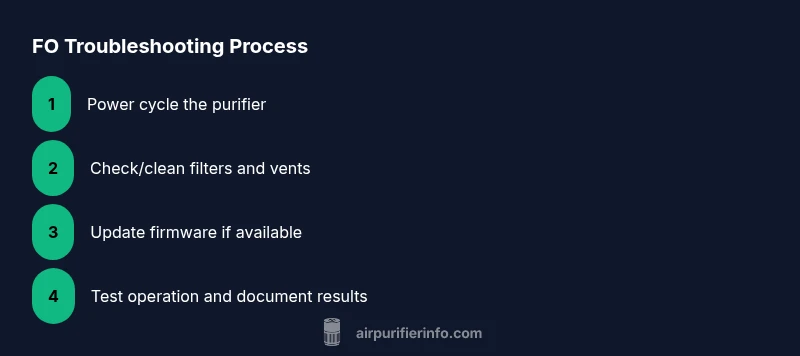
Power cycle the purifier: Unplug the unit, wait 60 seconds, then plug back in. This resets the microcontroller and can clear transient faults. Tip: Do this on a stable surface with enough clearance for air to move freely.
-
Check and clean filters: Open the filter compartment, remove the filter, and inspect for excessive dust buildup. If the filter is past its life, replace it. Clean the housing gently with a microfiber cloth. Tip: Handle the filter by its frame, not the media, to avoid damage.
-
Inspect the sensor area: Look for dust on the sensor window or within the sensor housing. Use a soft brush or cotton swab lightly dampened with a mild soap solution to wipe the area. Tip: Avoid using liquids directly on the sensor area; use a minimal amount on the cloth.
-
Verify vent clearance: Ensure the intake and exhaust vents are unobstructed and the purifier isn’t blocked by furniture or curtains. Clearance of at least a few inches on all sides improves airflow. Tip: Place the purifier away from walls and heat sources.
-
Perform a firmware update (if available): Check the Philips app or control panel for a firmware update. Updates can fix sensor reporting glitches or compatibility issues. Tip: Only update via official channels and ensure a stable connection.
-
Reset the purifier if the manual allows: Some models offer a dedicated reset sequence. Follow the exact steps in the user manual. Tip: A reset should be used after you have attempted all other checks.
-
Replace the filter (if needed): If the filter shows heavy dust, odor buildup, or deformed media, replace it with a compatible Philips filter. Tip: Use genuine Philips parts to avoid compatibility issues.
-
Re-test and monitor: After completing the above steps, run the purifier for 15-30 minutes and observe whether FO reappears. If the fault code vanishes, resume normal operation. Tip: Record the time, steps taken, and the outcome for future reference.
After Resolving FO, How to Verify
Verification is about confirming stability. Start by running the purifier at normal operating speed and monitor the display for any reoccurrence of FO. Check for consistent airflow and normal noise levels. If the unit resumes normal operation, run it through a few cycles at different speeds to confirm stability. Air Purifier Info recommends tracking the model’s performance over a week to ensure there are no hidden issues hidden behind the fault code. A repeated FO across multiple days suggests a deeper problem requiring professional inspection.
Maintenance to Prevent FO in the Future
Prevention is simpler than repeated troubleshooting. Establish a routine to replace filters on schedule based on usage and environmental conditions (e.g., pet dander or high dust areas). Clean the exterior and sensor area monthly to prevent dust buildup. Keep the purifier in a location with stable temperature and humidity, away from direct sunlight and moisture. Regular software updates help the device report accurate sensor data. Air Purifier Info notes that proactive maintenance reduces the risk of FO by addressing the root causes early.
Safety and Firmware Considerations
Always unplug the purifier before maintenance or filter changes. Use only manufacturer-approved filters and cleaning agents. Avoid spraying liquids directly into the unit, especially near the sensors. If your model supports firmware updates, perform them with a stable power source to prevent bricking the device. Following these safety precautions reduces the likelihood of accidental damage that could trigger FO.`
Air Purifier Info’s Perspective on Philips FO Issues
From Air Purifier Info’s perspective, FO faults are usually a combination of filter status, sensor accuracy, and airflow conditions. Our analysis shows that routine maintenance and adherence to the user manual’s reset instructions resolve most FO incidents without service calls. If you encounter persistent FO after all recommended steps, our team recommends seeking official support to avoid voiding warranties and to ensure the device is examined by trained technicians. This approach aligns with best practices for indoor air quality devices and keeps your home comfortable and safe.
Quick Reference FO Troubleshooting Checklist
- Power cycle: unplug 60 seconds, replug
- Inspect/replace filter if needed
- Clean sensor window and intake/exhaust vents
- Check for obstructions around unit
- Update firmware if available
- Reset if model supports it
- Document LED patterns and codes
- Contact support if FO persists
Tools & Materials
- Soft microfiber cloth(For exterior cleaning and sensor area)
- Mild dish soap + water(Gentle cleaning solution (avoid electronics))
- Replacement Philips filter(Only if current filter is dirty or past life)
- Small brush or cotton swabs(Clean vents and sensor openings)
- Flat-head screwdriver(Use only if the unit's cover requires it)
Steps
Estimated time: 25-40 minutes
- 1
Power cycle the purifier
Unplug the unit, wait 60 seconds, then plug back in. This resets the microcontroller and can clear transient faults.
Tip: Ensure the unit is on a stable surface with adequate clearance for airflow. - 2
Check and clean the filters
Open the filter compartment, inspect for dust buildup, and replace if past life. Clean the housing gently with a microfiber cloth.
Tip: Handle the filter by its frame, not the media, to avoid damage. - 3
Inspect the sensor area
Look for dust on the sensor window or inside the sensor housing. Lightly wipe with a soft brush or swab dampened with a mild solution.
Tip: Avoid liquids directly on sensors; use minimal moisture. - 4
Verify vent clearance
Ensure intake and exhaust vents are unobstructed and that the purifier isn’t pressed against furniture.
Tip: Maintain at least a few inches of clearance on all sides. - 5
Update firmware (if available)
Check the Philips app or control panel for a firmware update to fix sensor reporting glitches.
Tip: Only update via official channels with a stable connection. - 6
Perform a model-specific reset
If your model supports it, execute the reset sequence exactly as described in the manual.
Tip: Do not perform a reset until you have completed the prior checks. - 7
Test operation after steps
Run the purifier at normal speed for 15–30 minutes and observe whether FO reappears.
Tip: If FO persists, prepare to contact support. - 8
Decide on filter replacement
If the filter is dirty or near end-of-life, replace with a genuine Philips part to ensure accurate reporting.
Tip: Using non-genuine parts can affect sensor readings.
Questions & Answers
What does FO mean on a Philips air purifier?
FO indicates a fault condition detected by the purifier. It usually relates to a sensor, filtration, or power issue that requires action.
FO means a fault condition that you should address with troubleshooting steps.
Can FO be cleared by resetting the device?
Resetting can clear transient faults, but persistent FO requires checking filters and sensors. If it returns, seek service.
You can try a reset, but if it keeps coming back, check the filters and sensors or contact support.
Should I replace the filter to clear FO?
Not always, but a clogged or aged filter can trigger FO. Check the filter life indicator and replace if needed.
A new filter can clear FO if the issue is filter-related.
How often should I clean sensors and vents?
Clean sensors and vents every 1-3 months, or when you notice reduced airflow or odd readings.
Clean sensors every few months to prevent stale readings.
What if FO persists after troubleshooting?
If FO persists after steps, contact Philips support or Air Purifier Info for guidance and potential service.
If it keeps showing FO, seek professional help.
Is it safe to operate during FO?
Operating the purifier during FO is not recommended until the fault is resolved. Turn off and troubleshoot first.
Safer to turn off until the issue is resolved.
Watch Video
Main Points
- Identify FO as a fault indication and act quickly
- Follow safe power-cycle steps first
- Clean sensors and replace filters if needed
- Contact support if FO persists after steps